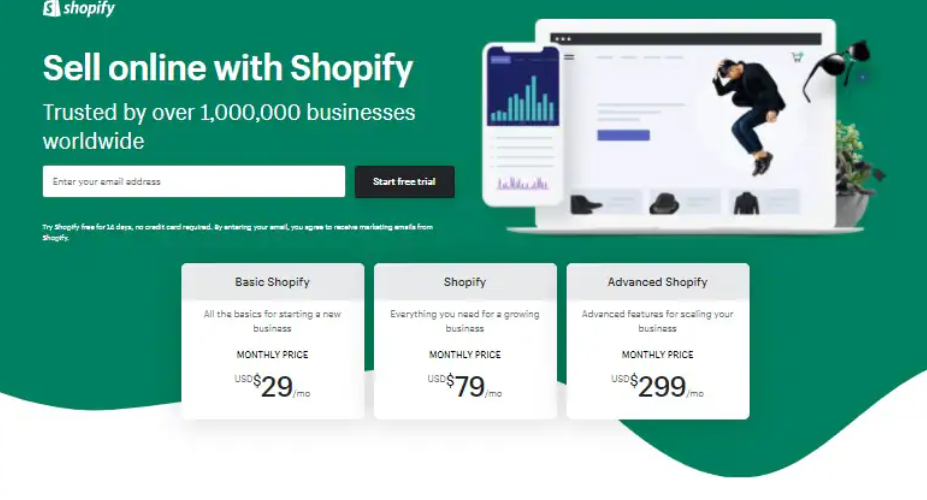
Creating a website today is easier than ever, and Shopify has become a top choice for entrepreneurs looking to sell online. But many new business owners hesitate due to budget concerns. The good news? You can use the Shopify website builder free for a limited time to set up a fully functional online store. In this guide, we’ll show you how to do just that from signing up to customizing your store all without spending a penny upfront.
Contents
- 1 What Is Shopify?
- 2 Is Shopify Really Free?
- 3 Step-by-Step: How to Build a Website for Free with Shopify
- 3.1 Step 1: Sign Up for the Shopify Free Trial
- 3.2 Step 2: Choose a Theme
- 3.3 Step 3: Customize Your Theme
- 3.4 Step 4: Add Products
- 3.5 Step 5: Set Up Essential Pages
- 3.6 Step 6: Set Up Navigation
- 3.7 Step 7: Configure Your Domain (Optional in Free Trial)
- 3.8 Step 8: Test Your Store
- 3.9 Step 9: Launch Your Website
- 4 Features Included in the Shopify Free Trial
- 5 Tips for Getting the Most Out of Your Free Shopify Trial
- 6 Pros and Cons of Using Shopify Website Builder Free
- 7 Shopify Website Builder free vs Other Platforms
- 8 Frequently Asked Questions
- 9 Final Thoughts
What Is Shopify?
Shopify is a cloud-based e-commerce platform that allows individuals and businesses to create online stores. It offers a wide range of features like customizable templates, secure payment gateways, inventory management, and marketing tools. What sets it apart is how user-friendly it is, even for beginners.
Is Shopify Really Free?
Shopify does not offer a permanently free plan, but it provides a 3-day free trial to explore the platform and build your store. Occasionally, Shopify extends offers where you can continue using your store for just $1/month for the next three months. This makes it incredibly cost-effective to test your business idea without a large upfront investment.
Step-by-Step: How to Build a Website for Free with Shopify
Step 1: Sign Up for the Shopify Free Trial
- Go to Shopify’s official website.
- Click on “Start free trial.”
- Enter your email address, password, and store name.
- Answer a few quick questions about your business.
- You’ll be directed to your Shopify dashboard — the command center of your online store.
Step 2: Choose a Theme
Shopify offers both free and paid themes. To keep it free:
- In your dashboard, go to “Online Store” > “Themes”.
- Scroll down to “Explore Free Themes”.
- Choose one that fits your brand and click “Add”.
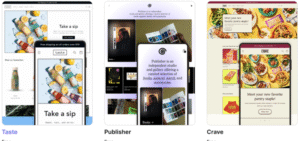
Free themes include:
- Dawn
- Craft
- Studio
- Refresh
Step 3: Customize Your Theme
- Click “Customize” to open the drag-and-drop theme editor.
- Change text, images, and layout using the intuitive interface.
- Add your logo, set your brand colors, and update your homepage banners.
- Save changes as you go.
Step 4: Add Products
- From the dashboard, go to “Products” > “Add Product”.
- Fill in details like product name, description, pricing, and images.
- Assign categories (called collections) to help organize your store.
Pro tip: Use high-quality images and compelling product descriptions to drive conversions.
Step 5: Set Up Essential Pages
Include pages like:
- About Us
- Contact Us
- Shipping Policy
- Return Policy
Go to “Online Store” > “Pages” to add these.
- Go to “Navigation” under the “Online Store” menu.
- Add your menu items, such as Home, Shop, About, Contact.
- Link each menu item to its respective page or collection.
Step 7: Configure Your Domain (Optional in Free Trial)
With the free trial, your domain will be something like typeforyou.myshopify.com. You can purchase a custom domain later or use a third-party registrar.
Step 8: Test Your Store
- Preview your website on both desktop and mobile.
- Test the checkout process using Shopify’s built-in test mode.
- Get feedback from friends or colleagues before going live.
Step 9: Launch Your Website
Once you’re happy with your setup and ready to accept real payments, choose a Shopify plan. You can continue with Shopify’s low introductory pricing ($1/month for 3 months if the offer is available).
Features Included in the Shopify Free Trial
Even during the trial, you get access to most core features:
- Website builder
- Product management
- Theme customization
- Order tracking
- Blog functionality
- Marketing tools
- Analytics dashboard
You won’t be able to accept real payments until you pick a plan, but you can test everything else freely.
Tips for Getting the Most Out of Your Free Shopify Trial
- Plan Your Store First: Know what products and content you’ll need.
- Use Free Resources: Shopify offers a lot of tutorials, templates, and support.
- Optimize Product Pages: Great photos and SEO-friendly descriptions go a long way.
- Explore the App Store: Add free apps to extend functionality, like email marketing or social proof.
- Check for Deals: Shopify often offers discounts or extended trials.
Pros and Cons of Using Shopify Website Builder Free
Pros:
- Risk-free trial
- No coding required
- Professional-looking themes
- Easy to scale as you grow
Cons:
- Limited time (3 days free, then low-cost plan)
- Limited to Shopify’s ecosystem
- Can become expensive at higher tiers
Shopify Website Builder free vs Other Platforms
| Platform | Free Trial | Ease of Use | E-commerce Focus | Design Options |
|---|---|---|---|---|
| Shopify | 3 days | Very Easy | Yes | High |
| Wix | Yes | Easy | Moderate | Very High |
| WordPress + WooCommerce | No (hosting costs) | Medium | Yes | High |
| Squarespace | 14 days | Easy | Moderate | High |
If your primary goal is to sell products online, Shopify is one of the best free tools to get started.
Frequently Asked Questions
1.Can I really build a full website using the Shopify website builder free trial?
Yes, during the trial period, you can build and customize a complete site.
2. Will I lose my work after the free trial?
No. Your data is saved. If you decide to upgrade after the trial, everything you created will still be there.
3. Do I need a credit card to sign up?
Not always. Shopify often allows you to start a free trial without payment info.
4. Can I use my own domain during the trial?
Yes, but you’ll need to purchase it separately and connect it.
5. Is Shopify better than other free website builders?
For e-commerce, yes. Shopify is purpose-built for online stores and offers a seamless experience.
Final Thoughts
Building a website with the Shopify website builder free trial is a smart, risk-free way to get your business online. It’s designed for ease of use, even if you’ve never built a site before. With a few clicks, you can launch a professional-looking store and start preparing for sales. Whether you’re testing a new product or launching your first business, Shopify makes the process smooth and accessible.